MP4 volume booster for quiet clips
To make an MP4 louder, drop it into this MP4 volume booster, choose 200% or 300% and listen. Then export. You get an MP4 back with the same picture track, copied bit for bit, and a louder AAC sound track at 192 kbps. Subtitles and chapters stay in the file.
By The Loudmend team (Product and testing). Last updated .
How to boost the volume of an MP4, step by step
Drag the MP4 or M4V file onto the drop box above.
Choose Boost, then set the level, for example 250%.
Hit play once to check the loudest part of the clip.
Export and wait a few seconds while the tool swaps the sound track.
Save the new MP4 and compare the loudness numbers before and after.
The first 3 runs each day are free. After that, see the pricing page for packs and plans, or read how we test the tool.
MP4 volume booster tested on a real quiet file
We ran this page's own test file through the same engine you use, with the settings the tool opens with. So the waveform and the numbers below are exactly what came back, measured the EBU R128 way.
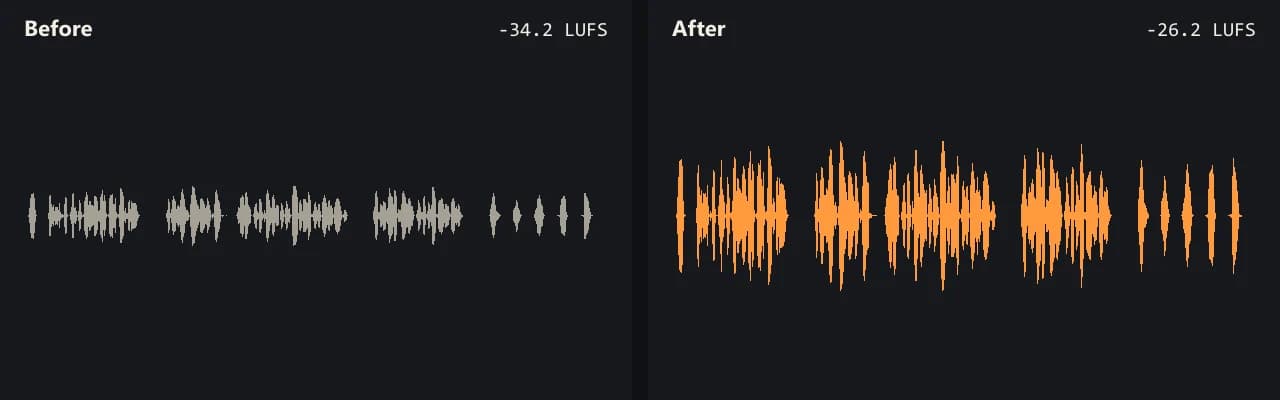
Same clip, same moment: switch while it plays. The after version is much louder, so start with your volume low.
- Test file
- quiet-interview.mp4 (20 s voice clip, 1280x720)
- Export
- Boost 250%, AAC 192 kbps
- Loudness before
- -34.2 LUFS
- Loudness after
- -26.2 LUFS
- Peak before
- -14.5 dB
- Peak after
- -6.5 dB
- Change
- +8 dB
- Server time
- 1.3 s
How we test: every guide runs its own quiet test file that we recorded ourselves, and we listen to each export. More on the about page.
How the MP4 volume booster treats each track
An MP4 file is a box that holds separate tracks. Usually there is one picture track, often H.264 or HEVC, and one sound track, often AAC. Some files also carry subtitles, chapters or a second sound track.
Our tool opens that box in your browser. It copies the picture track out without decoding it, and it copies the sound track out the same way. Then only the sound goes to our server, where it gets louder. Finally, the browser packs the new sound and the original picture into a fresh MP4.
So the picture codec does not matter. Since the tool never decodes it, an H.264 clip and an HEVC clip both work, and both keep their exact quality. Subtitles and chapters come along too.
Picking a level for an MP4
Think about where the MP4 will play. For a quick fix, Boost at 200% adds about 6 dB, while 300% adds about 9.5 dB. Free runs stop at 300%, and credits go up to 1000%.
If the clip goes to YouTube or a similar site, try Normalize at -14 LUFS, because streaming services such as YouTube and Spotify play music at about that level. For a podcast or a lecture, -16 LUFS is the usual target. Loud social clips sit near -11 LUFS.
For example, our 20 second test interview started at -34.2 LUFS. With Normalize at -14, it ended at -15.1 LUFS with the peak at -0.8 dB.
MP4 volume booster or a video editor?
An editor can raise volume too. However, most editors export the whole video again. That means a new encode of the picture, a wait that grows with the length, and a small loss each time.
In contrast, this tool never encodes the picture. A long screen recording or a 4K clip gets louder in about the time it takes to handle the sound alone. Also, you do not need to learn a timeline or set export options.
Still, an editor wins when you need to cut, add music or change one part only. Then you can come back here for the last loudness pass.
When this is not the right choice
Gain cannot repair a clipped recording, so a flat, crackly sound stays that way. Noise also rises with the voice. If your MP4 has two sound tracks, such as two languages, only the first one comes back.
Size matters as well. A desktop browser handles MP4 files up to 2 GB, but a phone should stay under about 500 MB.
What the MP4 volume booster does to each part
| Part of the MP4 | After the boost |
|---|---|
| Picture track (H.264, HEVC and others) | Copied bit for bit, no new encode |
| First sound track | Louder, written as AAC at 192 kbps |
| Second or third sound track | Dropped |
| Subtitles and chapters | Kept |
| Container | MP4 in, MP4 out (M4V stays M4V) |
| Largest file | 2 GB on desktop, about 500 MB on a phone |
MP4 volume booster FAQ
How do I increase MP4 volume online for free?
Drop the file above and export with Boost up to 300%. You get 3 free exports a day, with no sign up and no watermark.
Does an MP4 volume booster lower the video quality?
No. The tool copies the picture track exactly, so every frame stays the same. Only the sound is new.
Is my MP4 uploaded to a server?
Only its sound track is. The picture stays in your browser, and we delete the sound copy within 30 minutes.
Can this MP4 volume booster handle HEVC files from a phone?
Yes. Because the tool copies the picture and never decodes it, HEVC works just like H.264.
Will the boosted MP4 play everywhere?
It should play wherever the original did. The picture is the same, and AAC sound plays in nearly every MP4 player.
Can I boost an M4V file too?
Yes. The tool treats M4V the same way, and it comes back as M4V.
Related guides
Try it on your own file
Three exports a day are free. Your video stays in the browser; only the sound track is processed.