Increase volume of WAV file and keep it a true WAV
To increase volume of WAV file, drop it into the box above, set the boost, and press play to check it. Then export. The louder file is still a WAV with the same bit depth, 16 or 24 bit. Nothing turns it into a compressed format along the way, so the only change is the level itself.
By The Loudmend team (Product and testing). Last updated .
How to make a WAV file louder, step by step
Drop the WAV file into the box above.
Choose Boost for a fixed lift, Normalize for a target level, or Voice lift for speech.
Press play and listen to the quietest passage.
Leave the clipping guard on unless you want peaks to go past -1 dB.
Export and download the louder WAV.
The first 3 runs each day are free. After that, see the pricing page for packs and plans, or read how we test the tool.
Increase volume of WAV file tested on a real quiet file
We ran this page's own test file through the same engine you use, with the settings the tool opens with. So the waveform and the numbers below are exactly what came back, measured the EBU R128 way.
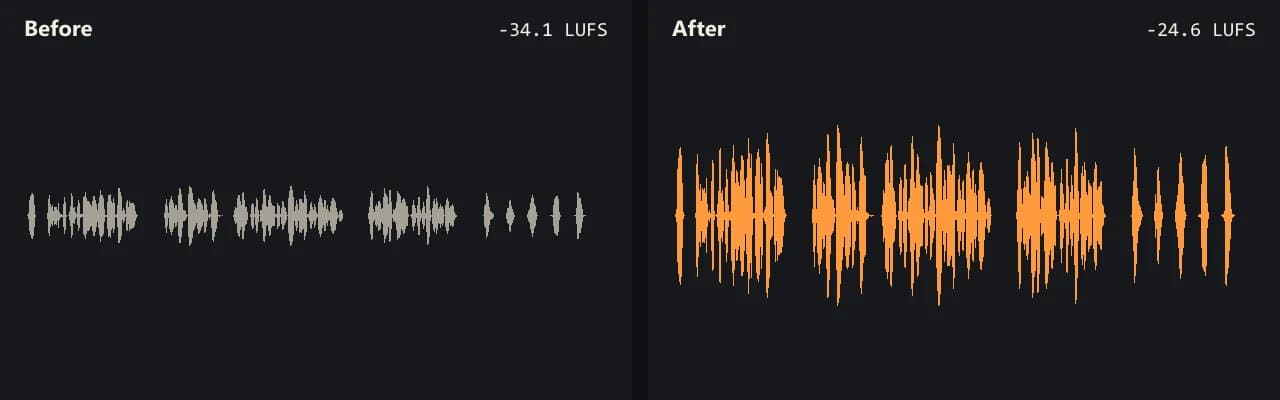
Same clip, same moment: switch while it plays. The after version is much louder, so start with your volume low.
- Test file
- quiet-voice.wav (20 s voice, mono 48 kHz)
- Export
- Boost 300%, WAV, same bit depth
- Loudness before
- -34.1 LUFS
- Loudness after
- -24.6 LUFS
- Peak before
- -14.5 dB
- Peak after
- -4.9 dB
- Change
- +9.5 dB
- Server time
- 0.9 s
How we test: every guide runs its own quiet test file that we recorded ourselves, and we listen to each export. More on the about page.
Why a WAV is the easiest file to make louder
Most WAV files hold plain, uncompressed sound, stored as one number per sample. Raising the volume just means multiplying those numbers. Because no lossy codec sits in the middle, there is no extra round of compression to worry about.
So when you increase volume of WAV file here, the tool writes a new WAV at the same bit depth as the original. A 16 bit file stays 16 bit, and a 24 bit file stays 24 bit. That matters if the file goes on to an editor, a mastering step or a sampler, since it keeps the format the next tool expects.
Compare that with an MP3 or an M4A. Those formats need a new lossy encode after every volume change, while a WAV does not.
Increase volume of WAV file without clipping
A WAV has a hard ceiling, called 0 dBFS. If a boost pushes a sample past that point, the top of the wave gets cut flat, and you hear a harsh crackle. In a lossless file that crackle is preserved perfectly, which is the opposite of what you want.
For this reason the clipping guard is on by default. It is a peak limiter at -1 dB. The quiet parts rise by the full amount, while the few loud peaks get held just under the ceiling.
Meanwhile, the numbers after each export show what happened. You see loudness in LUFS and the peak in dB, both before and after.
A real test on a quiet voice WAV
We recorded our own test file: a 20.3 second mono WAV, 48 kHz and 16 bit, with a voice far from the mic. It measured -34.1 LUFS, which sounds faint even at full speaker volume.
Then we ran Voice lift on it. The result came back at -17.2 LUFS with the peak at -1.0 dB, still a 16 bit mono WAV. In other words, the voice gained about 17 LU while the peaks stayed under the guard.
This tool or Audacity?
Audacity can raise a WAV too. Its Amplify effect shows the gain needed to bring the loudest peak to 0 dB, and you can type your own amount. That is the right pick if you also want to cut, fade or mix tracks, or edit many files offline.
However, Amplify works from the peak, so one loud cough limits how much the rest can rise. Here, the limiter catches that cough, and the rest of the file still comes up. Also, there is nothing to install.
Still, no tool can fix a WAV that clipped while recording, or remove a loud hum. Volume lifts noise along with the voice.
What the louder WAV keeps
| Property | After the boost |
|---|---|
| Format | WAV (uncompressed PCM) |
| Bit depth | Same as the original, 16 or 24 bit |
| Lossy encode | None |
| Peak ceiling | -1 dB with the clipping guard on |
| Upload limit | 100 MB per file |
| Length limit | 10 minutes free, 3 hours with credits |
Increase volume of WAV file FAQ
How do I increase volume of WAV file online?
Drop the WAV here, pick a mode and export. You get a louder WAV back in the same bit depth.
How do I increase volume of WAV file in Audacity?
Select the audio and open the Amplify effect. It suggests the gain that brings the loudest peak to 0 dB, and you can type a different amount.
Does a louder WAV lose quality?
No lossy step happens, since the file stays a WAV at the same bit depth. The only risk is clipping, and the guard prevents it.
Can I increase volume of a 24 bit WAV file?
Yes. A 24 bit WAV comes back as a 24 bit WAV.
How much can I increase the volume of a WAV file?
Free runs allow up to 300%, about +9.5 dB. Credits allow up to 1000%, about +20 dB, with the limiter holding the peaks.
Can I increase volume of more than one WAV file at once?
Each file is its own export. For many files that must match, use Normalize with the same target on each one, so they end up equally loud.
Will the sample rate change?
No. The tool only changes the level, so a 48 kHz WAV stays at 48 kHz.
Related guides
Try it on your own file
Three exports a day are free. Your video stays in the browser; only the sound track is processed.