Increase video volume without losing quality
You can increase video volume without losing quality when the tool leaves the picture alone. This one copies the video stream bit for bit and touches only the sound. The sound gets one re-encode at AAC 192 kbps, and a peak limiter at -1 dB stops loud parts from clipping. So the image stays identical and the voice gets louder.
By The Loudmend team (Product and testing). Last updated .
How to raise the volume and keep the quality, step by step
Drop your MP4, MOV, M4V, MKV or WebM file into the box above.
Press play and drag the Boost slider until the quiet parts sound right.
Leave the clipping guard on, since it keeps peaks under -1 dB.
Export the file. Only the sound goes to our server, never the picture.
Check the before and after numbers, then download the same format back.
The first 3 runs each day are free. After that, see the pricing page for packs and plans, or read how we test the tool.
Increase volume without losing quality tested on a real quiet file
We ran this page's own test file through the same engine you use, with the settings the tool opens with. So the waveform and the numbers below are exactly what came back, measured the EBU R128 way.
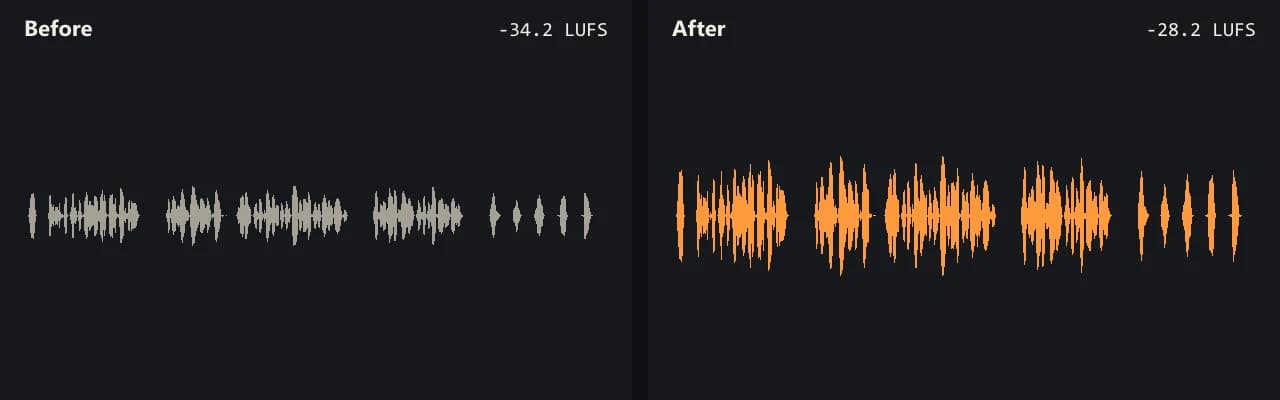
Same clip, same moment: switch while it plays. The after version is much louder, so start with your volume low.
- Test file
- quiet-interview.mp4 (20 s voice clip, 1280x720)
- Export
- Boost 200%, AAC 192 kbps
- Loudness before
- -34.2 LUFS
- Loudness after
- -28.2 LUFS
- Peak before
- -14.5 dB
- Peak after
- -8.5 dB
- Change
- +6 dB
- Server time
- 1.4 s
How we test: every guide runs its own quiet test file that we recorded ourselves, and we listen to each export. More on the about page.
Why most apps increase video volume by losing quality
Most apps that change volume rebuild the whole video. They decode every frame, apply the sound change, and then compress the picture again. Each new compression throws away a little detail, so fine text, dark scenes and gradients suffer first. A long export at a lower bitrate makes it worse.
The second loss is in the sound itself. If you push the gain too far, the loudest moments hit the digital ceiling and flatten out. That flat top sounds like crackle or buzz, and it stays in the file for good.
So there are two separate risks: a picture that gets compressed again, and a sound that clips. A good method avoids both.
How to increase video volume without losing quality in the picture
This tool never decodes the picture. Instead, FFmpeg runs inside your browser as WebAssembly and copies the sound track out of the file without changing it. Then only that sound travels to our server.
After the server makes the sound louder, your browser puts it back next to the original video stream. The picture data is the same, byte for byte, as the file you dropped in. Because nothing gets rendered again, there is no export wait for the image either.
This also works for iPhone files in HEVC or H.264. The tool never needs to read those frames, since it only copies them. The first video loads a 31 MB engine once, and later files skip that step.
What happens to the sound quality
To be honest about it, the sound does change once. The louder track comes back as AAC 192 kbps in MP4, MOV, M4V and MKV files, or as Opus 160 kbps in WebM. That is a single new encode at a high bitrate, rather than a chain of them.
Meanwhile, the clipping guard handles the other risk. It is a peak limiter set at -1 dB, and it is on by default. As a result, the quiet parts come up while the loud parts stay under the ceiling. For example, our own 20 second test interview started at -34.2 LUFS with peaks at -14.5 dB. At 1000% with the guard on, it reached -15.9 LUFS and peaked at -0.9 dB, with no clipped peaks.
When you cannot increase video volume without losing quality
Some files are past saving. If the voice already clipped during recording, making it louder only makes the crackle louder. Likewise, a hum or crowd noise rises with the voice, because a volume change treats all sound the same.
Also, only the first sound track comes back. A video with two languages loses the second one. Finally, if you just want louder playback on your own screen, a player setting is enough, and you do not need to touch the file at all.
What changes and what stays the same
| Part of the file | What the tool does |
|---|---|
| Picture (video stream) | Copied bit for bit, never decoded or compressed again |
| Sound in MP4, MOV, M4V, MKV | Raised, then encoded once as AAC 192 kbps |
| Sound in WebM | Raised, then encoded once as Opus 160 kbps |
| Loud peaks | Held under -1 dB by the clipping guard (on by default) |
| Subtitles and chapters | Kept when the container allows it |
| Extra sound tracks | Dropped, only the first track comes back |
Increase volume without losing quality FAQ
Does boosting volume reduce video quality?
It does when an app compresses the picture again. Here the picture stays a bit for bit copy, so the image quality cannot drop.
How can I increase the volume of a video without distortion?
Keep the clipping guard on. It holds the peaks under -1 dB, so you can raise the quiet parts without the loud parts cracking.
Will the file size change?
Only a little. The picture stays the same size, and just the sound track gets a new encode at 192 kbps.
Is the sound quality lower after the boost?
The sound goes through one new encode at a high bitrate. However, a clipped or noisy recording keeps those flaws, since the tool only changes volume.
How far can I push the volume?
Free runs go up to 300%, which is about +9.5 dB. Credits allow up to 1000%, or +20 dB.
Can I increase video volume without losing quality on iPhone?
Yes. Open this page in Safari, pick the clip from Photos and export. Phones have less memory, so keep the video under about 500 MB.
Is there a free way to increase video volume without losing quality?
Yes. You get 3 free exports a day with no account and no watermark, for sound up to 10 minutes long.
Does my video get uploaded?
No. Your browser keeps the picture. Only the sound track goes to our server, and we delete it within 30 minutes.
Related guides
Try it on your own file
Three exports a day are free. Your video stays in the browser; only the sound track is processed.